Page 1 of 1
Purpe Color Not Transparent in Sprites After Editing
#1 Posted 05 August 2010 - 08:48 AM
Purpe Color Not Transparent in Sprites After Editing
So I am modifying the first enemy you encounter in Duke 3D, well mainly his death animation. Anyway, when the modified part of the animation plays, the purple background jumps up around him in a square shape... the part that is supposed to be transparent.
I put the modified art file in my DukePlus\DUKEPLUS_RESOURCES directory. After a long day of slaving over the modding tools, I was happy to at least see that it had an impact in the game. But the light purple background colors ruin it for me.
I've tried all kinds of things. And yes, I am positive that the purple is the RGB 252, 0, 252. I don't understand why the purple color shows up in these files when they're basically identical to the vanilla files, bit depth and purple color wise. I've tried making the background white, but that didn't work either. And I don't seem to be able to make the background transparent, because that would mean the file wasn't 8-bit, and it wouldn't be able to go in the tiles006.art file.
If anyone can explain this to me, I would appreciate it.
So I am modifying the first enemy you encounter in Duke 3D, well mainly his death animation. Anyway, when the modified part of the animation plays, the purple background jumps up around him in a square shape... the part that is supposed to be transparent.
I put the modified art file in my DukePlus\DUKEPLUS_RESOURCES directory. After a long day of slaving over the modding tools, I was happy to at least see that it had an impact in the game. But the light purple background colors ruin it for me.
I've tried all kinds of things. And yes, I am positive that the purple is the RGB 252, 0, 252. I don't understand why the purple color shows up in these files when they're basically identical to the vanilla files, bit depth and purple color wise. I've tried making the background white, but that didn't work either. And I don't seem to be able to make the background transparent, because that would mean the file wasn't 8-bit, and it wouldn't be able to go in the tiles006.art file.
If anyone can explain this to me, I would appreciate it.

#2 Posted 05 August 2010 - 08:58 AM
I can not remember much about how to use Editart, but I know that if you press Backspace it will select the transparent color (255,000,255) and then you need to hit the key that will replace the purple you have with the one that it selects.
Realistically you don't want to do it like this at all, it would be better to use a .def file and a load of .PNG images, but if you don't have a decent image editor that may be harder than the way you are doing things already.
#3 Posted 05 August 2010 - 09:17 AM
There are two purple/magenta colors in Duke3d palette. I suppose that setting an GIF/PNG as transparent should solve the problem...
#4 Posted 05 August 2010 - 09:19 AM
Would you care to elaborate on this plan.
I'm somewhat new to the sprite editing business.
And Fox, my problem comes from not being able to save .png in the .art file. Would I just put the sprites from the .art in a .def as .pngs in my DukePlus\DUKEPLUS_RESOURCES directory?
Quote
Realistically you don't want to do it like this at all, it would be better to use a .def file and a load of .PNG images, but if you don't have a decent image editor that may be harder than the way you are doing things already.
I'm somewhat new to the sprite editing business.
And Fox, my problem comes from not being able to save .png in the .art file. Would I just put the sprites from the .art in a .def as .pngs in my DukePlus\DUKEPLUS_RESOURCES directory?
This post has been edited by a muffin: 05 August 2010 - 09:26 AM
#5 Posted 05 August 2010 - 09:31 AM
Hmm, I did not realise you was actually working with .art. I was thinking it would be a def, since it's a sub_directory.
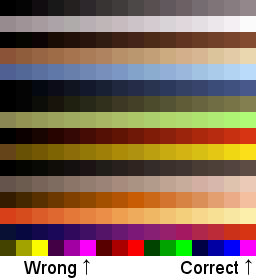
But as I said, there are two magenta colors. Editart load the non-transparent by default, and thus you need to replace the color in Editart.
#6 Posted 05 August 2010 - 09:48 AM
What Fox said. Basically, we have another facepalm brought to you by 3D Realms.

What you need to do is set the pink color to be transparent in PNGs, and use tilefromtexture (not "texture"). Add the definitions to duke3d.def and place it in your EDuke32 directory.

What you need to do is set the pink color to be transparent in PNGs, and use tilefromtexture (not "texture"). Add the definitions to duke3d.def and place it in your EDuke32 directory.
This post has been edited by Hendricks266: 05 August 2010 - 09:49 AM
#7 Posted 05 August 2010 - 10:38 AM
Those colors are both 252, 0, 252!
Oh well, thanks for letting me know. I guess my files weren't identical to 3D's after all.
I got it to work with the .art file by changing the RBG to the "Wrong" pink color to 250, 0, 250 instead of 252, 0, 252, and then recoloring the purple.
Thanks for all your help guys.
Oh well, thanks for letting me know. I guess my files weren't identical to 3D's after all.
I got it to work with the .art file by changing the RBG to the "Wrong" pink color to 250, 0, 250 instead of 252, 0, 252, and then recoloring the purple.
Thanks for all your help guys.
#8 Posted 27 October 2010 - 09:05 PM
a muffin, on Aug 5 2010, 11:38 AM, said:
Those colors are both 252, 0, 252!
Oh well, thanks for letting me know. I guess my files weren't identical to 3D's after all.
I got it to work with the .art file by changing the RBG to the "Wrong" pink color to 250, 0, 250 instead of 252, 0, 252, and then recoloring the purple.
Thanks for all your help guys.
Oh well, thanks for letting me know. I guess my files weren't identical to 3D's after all.
I got it to work with the .art file by changing the RBG to the "Wrong" pink color to 250, 0, 250 instead of 252, 0, 252, and then recoloring the purple.
Thanks for all your help guys.
I'm having the exact same issue and Im ripping my hair out trying to find a solution. I've googled the topic, visited numerous forums and have read and attempted every single remedy I've been able to find but to no avail. The vast majority of the responses to the issue I've found are saying one of the following:
Use Ken's EDITART.EXE to directly edit the tile after importing to apply the correct tranparency color
Blaaaaah. Can't seem to get EDITART to even start. Thats out of the question
-Open the image in GIMP
-Import the DN pallette (Duke3D.pal)
-Edit one of the 2 pink colors in the pallette (I've tried it both ways, changing each color)
-Reapply the modified pallette to the image
-Reapply the pink color to the areas that are to be transparent
-Save the image and import into the .ART file (I use Wally for this, as I get an error with DukeRES about Duke only supporting images with 256 colors)
Aaaaaand...nada
Clearly I'm doing something wrong ^^ You say you were able to fix it, but I'm a bit confused as to HOW you did exactly. Could you (or anyone) explain the process in a little more detail? I'm using GIMP, Wally and DukeRES if that helps anyone to be even more specific
This post has been edited by The Deviant Mind: 27 October 2010 - 09:07 PM
#9 Posted 29 October 2010 - 12:58 AM
Hendricks266, on Aug 6 2010, 04:18 AM, said:
use tilefromtexture (not "texture"). Add the definitions to duke3d.def and place it in your EDuke32 directory.
These days, most people except for 'the veteran hardcore full on mod makers who've been around since Duke's release 14 years ago' use the DEF language instead of any .art editing programs to put images into the game. Tilefromtexture which Hendricks tried pointing out does the exact same thing as the art exe's in that it puts 8 bit art in the game using PNG's where the parts you don't want to show up in game you make the alpha channel (normal transparency in PNG editing programs), but there are other types of DEFs which allow you to put in high definition textures and other things which might be worth a look at. Using DEFs is the easiest thing ever, and that's coming from me; a guy with no programming experience whatsoever, if you're still struggling with working it out, look at some examples in the High Resolution Pack DEFs in the hrp.zip
#10 Posted 29 October 2010 - 10:18 AM
Yeah I saw that too then read the eduke wiki section about it. Achieved the effect I was aiming for with this method. Was just hoping to get it working through the .ART files just for the sake of simplicity and tidiness. That and anytime I encounter a tiny, irritating little problem like that I'm determined to find a solution lol Both a good and bad trait I guess. But I'll say screw it and just go down the DEF road. It's killing my time and my motivation o_O But still, if anyone has an answer to the question, please do share ^^ Not important now, but I'd just like to have the knowledge.
#11 Posted 29 October 2010 - 10:38 AM
Download DOSBox and just drag the Editart.exe from your Duke folder ontop of the DosBox shortcut, it should start in DOSbox and allow you to edit the .ART files if you really want to do that.
But you can certainly use .DEF instead, it's far more advanced anyway.
#12 Posted 29 October 2010 - 03:29 PM
For EDITART.EXE to work natively on Windows XP DOS4GW.EXE MUST be present. I'd also recommend using the eDuke 2.0 version of EDITART.EXE. Since I guess you're gonna ask "Where can I get this stuff?," I'll just go ahead and upload everything you'll need for you.
eDuke 2.0 EDITART.EXE, DOS4GW.EXE, and LOOKUP.DAT, PALETTE.DAT, and TABLES.DAT in ~230kb .zip file.
This post has been edited by Captain Awesome: 29 October 2010 - 03:37 PM
#14 Posted 01 November 2010 - 02:04 PM
So, that worked for you? I'm glad. EDITART is truly the best program to edit art files with.
#16 Posted 04 November 2010 - 11:42 AM
I've found using Paint Shop Pro (or whatever your favourite PNG+Transparency capable image editor is) and .def files to be the best solution, the primary downside being that it's only compatible with eduke32.
EDIT: The upshot being that you don't have to package entire *.ART files and you are able to compress the PNG files to miniscule sizes.
This post has been edited by SwissCm: 04 November 2010 - 11:45 AM
#17 Posted 04 November 2010 - 07:33 PM
SwissCm, on Nov 4 2010, 02:42 PM, said:
EDIT: The upshot being that you don't have to package entire *.ART files and you are able to compress the PNG files to miniscule sizes.
The only issue is that they will fill up clusters like a B, although this can be prevented by zipping them up without any compression.
#18 Posted 09 August 2022 - 06:00 PM
My solution was in Photoshop to simply copy paste the original purple color, instead of painting/filling. Works great, weirdly enough.
#19 Posted 07 May 2025 - 04:14 AM
This problem was killing my nerves - seeing all this purple everywhere even though I thought I did it correctly, because I was doing it like this in case of SW few months back and there was no problem.
Anyway, the simple solution for my usage (Gimp) is simply clicking on the color > edit this color > change to 'ff00ff'. Everything works correctly after that.
The DEF way of doing this is surely more forgiving and doesn't require putting anything into ART files, but it's also engine-specific and not vanilla compatible. Plus, since the DEF files are complicating things when it comes to loading more of them, it can become more of a hindrance in some cases.
So I don't think it's strictly for 'veterans', but it's sometimes the more compatible and actually simpler way of dealing with some sprite/texture replacements.
Anyway, the simple solution for my usage (Gimp) is simply clicking on the color > edit this color > change to 'ff00ff'. Everything works correctly after that.
The DEF way of doing this is surely more forgiving and doesn't require putting anything into ART files, but it's also engine-specific and not vanilla compatible. Plus, since the DEF files are complicating things when it comes to loading more of them, it can become more of a hindrance in some cases.
So I don't think it's strictly for 'veterans', but it's sometimes the more compatible and actually simpler way of dealing with some sprite/texture replacements.
Share this topic:
Page 1 of 1

Help
Duke4.net
DNF #1
Duke 3D #1